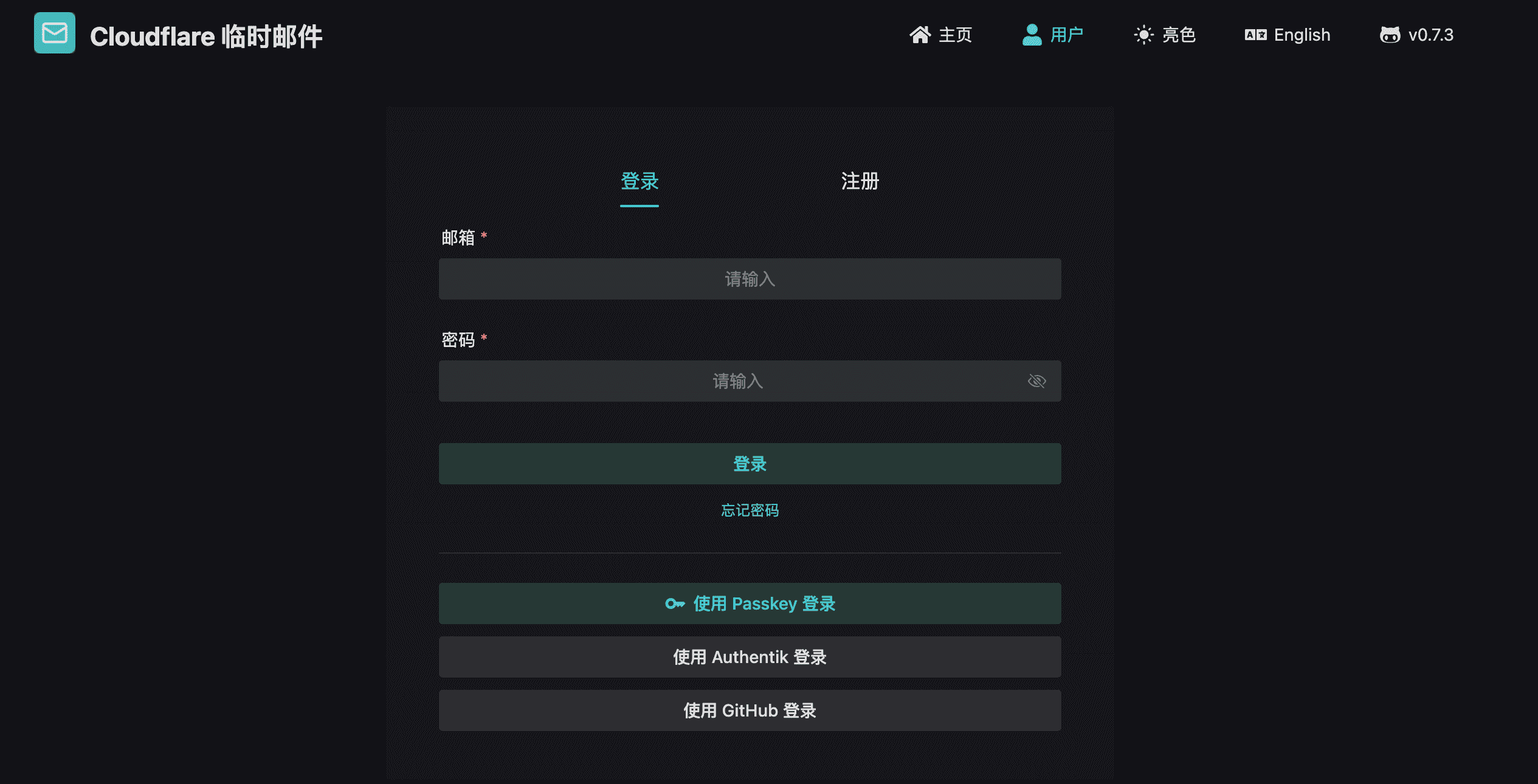
OAuth2 Third-Party Login
Note
Third-party login will automatically register an account using the user's email (emails with the same address will be considered the same account)
This account is the same as a registered account and can also set a password through the forgot password feature
Register OAuth2 on Third-Party Platforms
GitHub
- Please first create an OAuth App, then obtain the
Client IDandClient Secret - The default GitHub template uses
https://api.github.com/useras the user info endpoint and reads theemailfield from the returned JSON. If the GitHub account hides its public email, this field isnull, and login returns[400]: Failed to get user email from OAuth2 provider. - Fix it by making the email public in the GitHub profile, or by using a provider/API that returns an email field. If the returned value is not a standard email, use the "Email Format Transformation" section below.
If you do not want to expose a public GitHub email, use the GitHub email list API instead:
| Field | Value |
|---|---|
| User Info URL | https://api.github.com/user/emails |
| User Email Key | $[?(@.primary==true)].email |
| Scope | user:email |
When a Public email is selected in the GitHub profile, the default https://api.github.com/user endpoint with User Email Key = email can still be used. Merely changing an email from private to visible without selecting it as the public email can still make the /user API return email: null.
Reference: Creating an OAuth App
Linux Do
- Create an application at Linux Do Connect to obtain
Client IDandClient Secret - Linux Do returns a user ID instead of an email, so you need to enable the Email Format feature
Authentik
Configure OAuth2 in Admin Backend
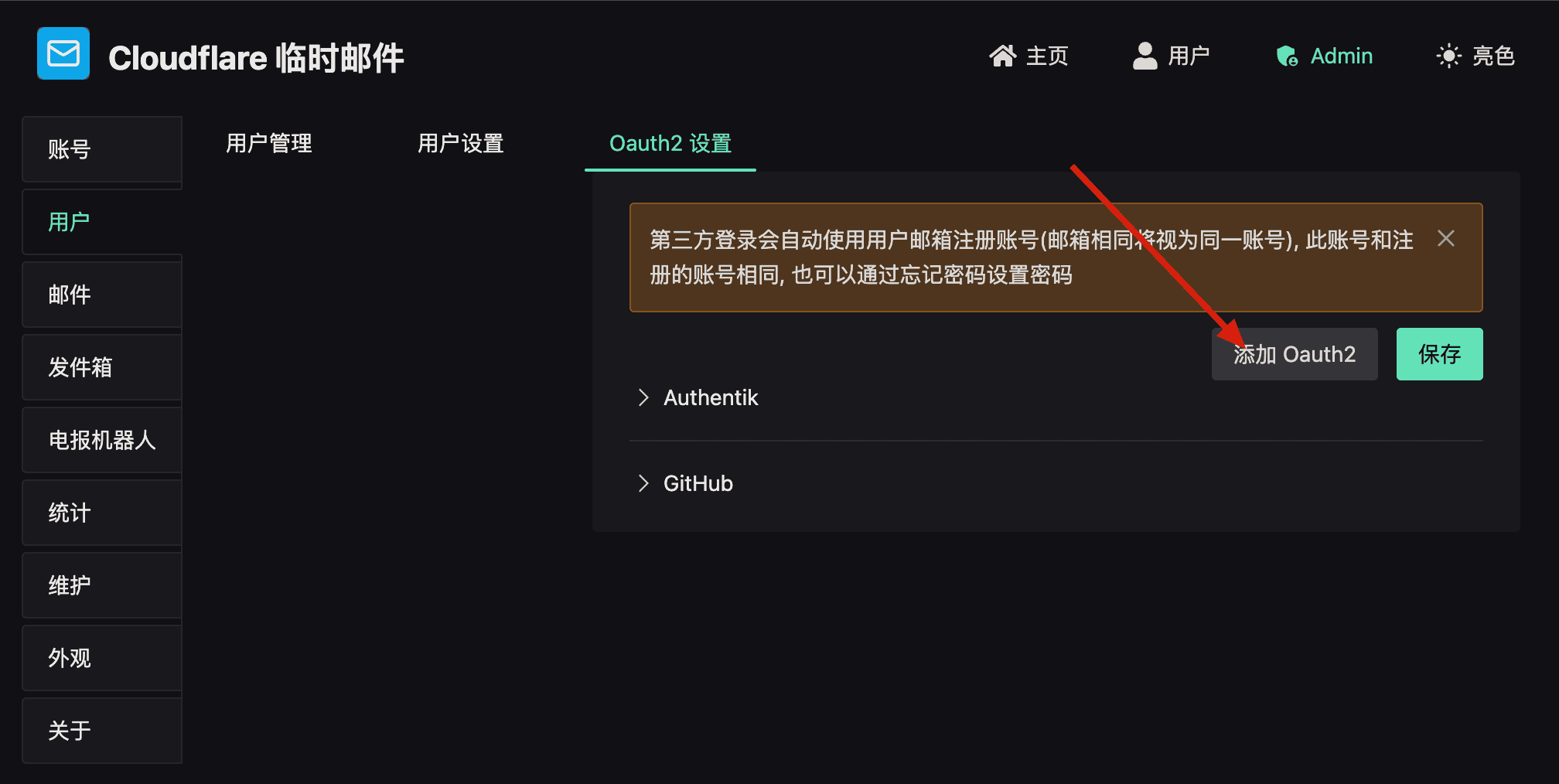
Configuration Fields
| Field | Description |
|---|---|
| Name | OAuth2 provider name, displayed on the login page |
| Client ID | OAuth2 application ID |
| Client Secret | OAuth2 application secret |
| Authorization URL | OAuth2 authorization endpoint |
| Access Token URL | Endpoint to obtain Access Token |
| Access Token Params Format | Token request format: json or urlencoded |
| User Info URL | Endpoint to get user information |
| User Email Key | Key for email field in user info, supports JSONPath (e.g., $[0].email) |
| Redirect URL | OAuth2 callback URL |
| Scope | OAuth2 permission scope |
Redirect URL must exactly match the callback URL configured in the third-party OAuth App. The default frontend callback path is:
https://your-frontend-domain/user/oauth2/callbackEven if your site uses locale-prefixed routes, it is still recommended to configure the OAuth provider with the callback URL without a locale prefix to avoid callback mismatches between languages.
Email Format Transformation
When OAuth2 returns a non-standard email format (e.g., returns a user ID), you can enable the Email Format feature.
| Field | Description |
|---|---|
| Enable Email Format | Enable email format transformation |
| Email Regex Pattern | Regular expression to match the original value, use capture groups () |
| Replace Template | Replacement template, use $1, $2, etc. to reference capture groups |
Examples:
| Scenario | Original Value | Regex Pattern | Replace Template | Result |
|---|---|---|---|---|
| ID to Email | 12345 | ^(.+)$ | [email protected] | [email protected] |
| Change Domain | [email protected] | ^(.+)@old\.com$ | [email protected] | [email protected] |
| Extract Username | [email protected] | ^(.+)@.*$ | [email protected] | [email protected] |
Email Address Allow List
When enabled, only emails from specified domains can login.
Test User Login Page