
Admin Console
NOTE
You need to configure ADMIN_PASSWORDS or ADMIN_USER_ROLE to access the admin console Admin role configuration: if the user role equals ADMIN_USER_ROLE, they can access the admin console
After deploying the frontend application, click the upper-left logo 5 times or visit the /admin path to enter the Admin Console.
You need to configure ADMIN_PASSWORDS in the backend or ensure the current user role is ADMIN_USER_ROLE, otherwise access to the console will be denied.
Admin Passwords vs User Accounts
ADMIN_PASSWORDS is the password for the Admin Console. It is not a site user account and does not correspond to any mailbox. Logging in with an admin password grants access to the console, but that login itself cannot receive mail.
Site user accounts are stored in the users table and use the user login flow. Whether a user can receive mail depends on whether they created or bound a mailbox. Creating a normal user whose account email is [email protected] does not automatically grant admin permissions.
If you want a user account to access the Admin console, configure ADMIN_USER_ROLE and assign the same role to that user in user management.
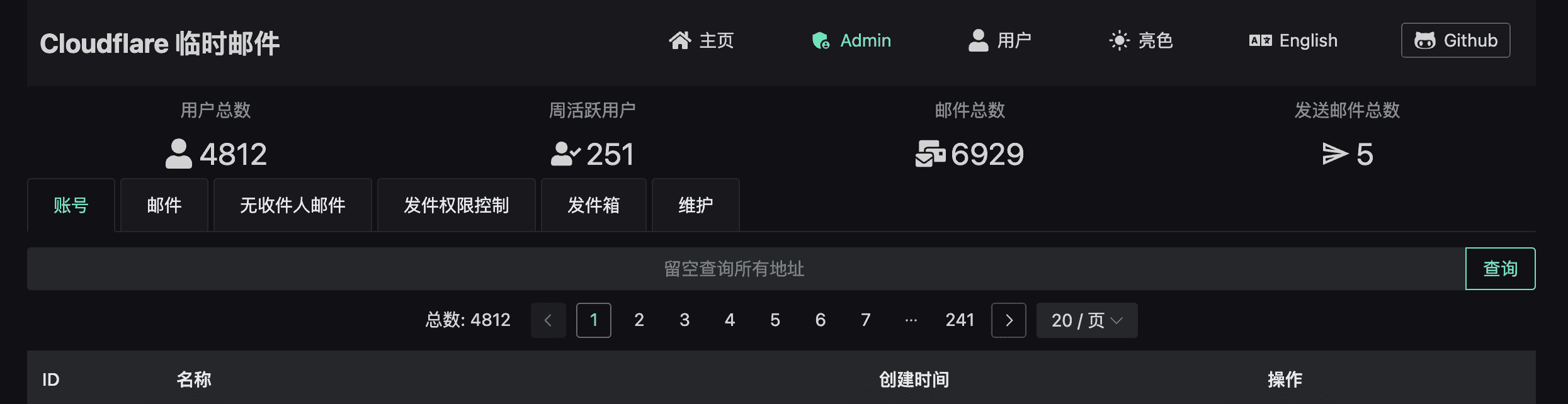
Mailbox List Sorting
Admin Console → Mailbox Management → Mailboxes supports column sorting. Click a column header to toggle ascending/descending order for:
- ID
- Email Address
- Created At
- Updated At
- Mail Count
- Send Count
When searching for email addresses, pagination automatically resets to page 1.
If your website is for private access only, you can disable this check
DISABLE_ADMIN_PASSWORD_CHECK = true
IP Blacklist / Whitelist
Configure access control in Admin Console → IP Blacklist Settings. Applies to: create address, send mail, external send mail API, user registration, and verify code endpoints.
IP Whitelist (Strict Mode)
When enabled, only whitelisted IPs can access protected endpoints; all others receive 403.
- Plain entries: exact match (no substring), e.g.
1.2.3.4 - Regex entries: use anchored patterns, e.g.
^192\.168\.1\.\d+$ - Whitelisted IPs skip blacklist checks
- If whitelist is enabled but the list is empty, the server ignores the switch (fail-open to prevent lockout)
IP Blacklist
When enabled, matching IPs receive 403. Supports substring text matching or regex.
ASN Organization Blacklist
Block by ISP/provider name, case-insensitive. Supports text or regex matching.
Browser Fingerprint Blacklist
Block by x-fingerprint request header. Supports exact or regex matching.
Daily Request Limit
Limit the maximum number of requests per IP per day (1–1,000,000). Exceeding the limit returns 429. Counter resets every 24 hours (UTC date boundary).